Quick SD card fix

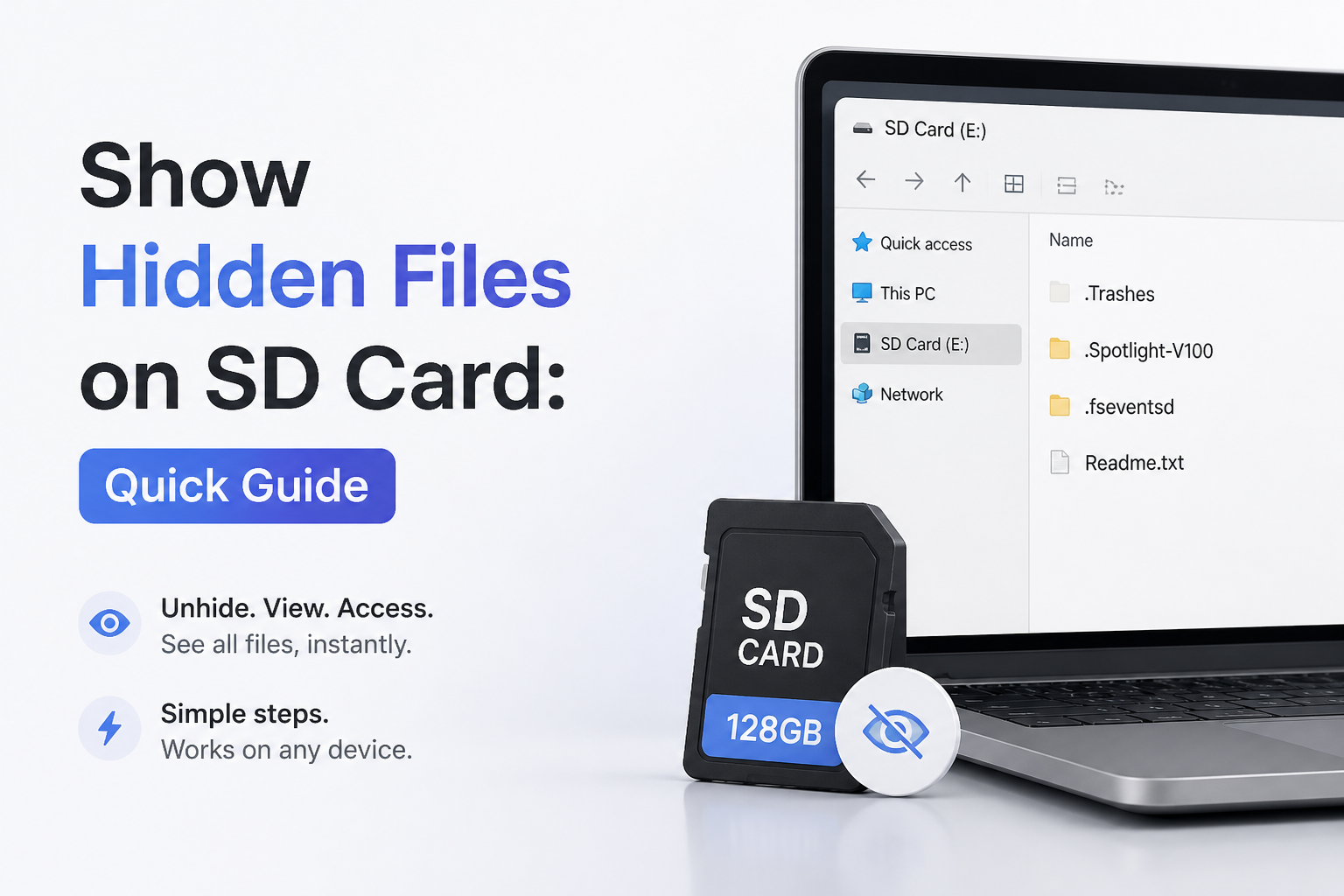
Show Hidden Files on SD Card: Quick Guide

Your files may be hidden rather than erased. Try the simple visibility switch first, then move to attribute repair or recovery if the card still looks empty.

Quick answer

On Windows, open the SD card in File Explorer, then turn on View › Show › Hidden items. On a Mac, press Command + Shift + . in Finder. If neither reveals the files, stop using the card before trying attribute repair or a Disk Drill scan.

!

Do not format the SD card or save new files to it if the missing data matters. New writes may overwrite deleted content that recovery software could otherwise find.
★ Editorial pick ★ 4.4 / 5

Recover Files That Are No Longer Hidden → Disk Drill

Scans SD cards for deleted or lost photos, documents, plus video · Offers previews before recovery · Windows or macOS

✓ Windows plus macOS ✓ File preview ✓ SD card scanning
Scan the SD card →

When Not to Keep Troubleshooting an SD Card at Home

Stop if the card repeatedly disconnects, becomes unusually hot, appears with the wrong capacity, or vanishes from Disk Management or Disk Utility. Those symptoms can point to hardware failure rather than hidden attributes.

For irreplaceable work, family photos, or client footage, repeated scans may be a poor gamble. Disconnect the card, store it safely, then ask a reputable recovery lab for an assessment.

Choose the Right Way to Show Hidden Files on an SD Card

Begin with the method matching the device where you opened the card.

Method Best for Time Success rate
1. Show Hidden Files in Windows File Explorer TRY FIRST Normally working cards on Windows ~1 min 95%
2. Remove Hidden Attributes With Command Prompt Whole folders marked hidden or system ~3 min 82%
3. Reveal Hidden SD Card Files in Finder Hidden content viewed on a Mac ~1 min 94%
4. Enable Hidden Files on an Android Device microSD cards inside phones or tablets ~2 min 85%
5. Scan the SD Card With Disk Drill Deleted, formatted, or inaccessible files ~15 min 68%

Top 5 Ways to Show Hidden Files on an SD Card

01

Show Hidden Files in Windows File Explorer

Fastest fix when the SD card still shows the expected used space

~1 min
Difficulty Easy
You need File Explorer
Works for Windows 10, Windows 11

Start here if folders vanished but the card opens normally. A changed visibility setting or hidden file attribute is often the whole problem.

  1. Insert the SD card, then open File Explorer.
  2. Select the SD card under This PC.
  3. On Windows 11, choose ViewShowHidden items. On Windows 10, open the View tab, then check Hidden items.
  4. Look for pale or slightly transparent files. Select anything you want to keep visible, right-click it, then choose Properties.
  5. Clear the Hidden box, click Apply, then apply the change to included folders plus files if prompted.
Disk Drill Review
i Do not delete unfamiliar system folders merely because they become visible.
02

Remove Hidden Attributes With Command Prompt

Useful when a virus or device error hid many folders at once

~3 min
Difficulty Moderate
You need Command Prompt
Works for Windows 10, Windows 11

The attrib command can clear hidden plus system attributes across the card. This is quicker than editing dozens of folders one at a time, though the drive letter must be correct.

  1. Open This PC, note the SD card's drive letter, then close any files stored on the card.
  2. Type cmd in Windows Search, right-click Command Prompt, then choose Run as administrator.
  3. Enter attrib -h -s /s /d E:\*.* , replacing E: with the SD card's actual drive letter.
  4. Press Enter, then wait for the prompt to return. A large card may take a few minutes.
  5. Reopen the card in File Explorer to check whether its folders have returned.
i Double-check the drive letter before running the command. Changing attributes on the wrong drive can expose protected operating-system files.
03

Reveal Hidden SD Card Files in Finder

The quickest built-in option for a card connected to a Mac

~1 min
Difficulty Easy
You need Finder
Works for macOS

Finder can toggle hidden content with one keyboard shortcut. Hidden items usually appear dimmer than ordinary files, making them easy to spot.

  1. Connect the card through the Mac's slot or a reliable USB card reader.
  2. Open Finder, then select the SD card under Locations.
  3. Press Command + Shift + . using the period key.
  4. Open any newly visible folders, then copy your important files to the Mac.
  5. Press the same shortcut again if you prefer to hide system content afterward.
i Copy needed files before changing names or moving folders that a camera may rely on.
04

Enable Hidden Files on an Android Device

Handy for microSD cards used in phones, tablets, dashcams, or portable recorders

~2 min
Difficulty Easy
You need A file manager
Works for Most Android devices

Many Android file managers hide dot-prefixed folders by default. Menu names differ between phone brands, so the setting may sit under View, Display, or Advanced.

  1. Open the phone's built-in Files or My Files app.
  2. Choose SD card from the storage list.
  3. Open the three-dot menu, then enter Settings or View options.
  4. Turn on Show hidden files or a similarly named option.
  5. Return to the card, locate the missing content, then copy important files to internal storage or another device.
i Folders beginning with a period often store app data, thumbnails, or settings. Avoid altering them unless you recognize their purpose.
05

Scan the SD Card With Disk Drill

Use recovery software when visibility settings reveal nothing

~15 min
Difficulty Moderate
You need Disk Drill plus a card reader
Works for Windows, macOS

If the files were deleted, lost after formatting, or disconnected from a damaged file system, they are not simply hidden. Disk Drill can scan the card for recoverable content, including photos plus video.

  1. Stop using the SD card so new data does not overwrite the missing files.
  2. Connect the card directly to the computer through a stable card reader.
  3. Open Disk Drill, select the physical SD card, then start Search for lost data.
  4. Review the scan results. Use file-type filters, search, or previews to narrow the list.
  5. Select the files you need, click Recover, then save them to the computer or another drive, never back onto the same SD card.
i A scan cannot guarantee recovery. Preview a few important files before deciding whether the results are usable.
Visit the Disk Drill website

Which SD Card Method Should You Try?

Start with the visibility setting for your operating system because it is quick, free, plus harmless when the card opens normally. Use Command Prompt if Windows shows an empty card despite occupied storage. If the content remains missing or the card was formatted, stop writing to it, then scan it with Disk Drill or consult a recovery lab when the hardware behaves erratically.

Copy recovered or newly revealed files to another drive before repairing, formatting, or reusing the SD card.

Common Questions About Hidden SD Card Files

Why are my SD card files hidden?
File attributes may have changed after malware, an interrupted transfer, or use in another device. Some cameras plus apps also create hidden folders on purpose.
How do I show hidden files on an SD card in Windows 11?
Open the card in File Explorer, choose View, select Show, then turn on Hidden items. Hidden files should appear slightly faded.
How do I view hidden SD card files in Windows 10?
Open File Explorer, select the View tab, then check Hidden items. You can clear each file's Hidden property if you want it to remain visible.
What command reveals hidden SD card files?
Use attrib -h -s /s /d E:\*.* in Command Prompt, replacing E with the correct card letter. Verify that letter carefully before pressing Enter.
How do I show hidden files from an SD card on a Mac?
Open the card in Finder, then press Command + Shift + . . Press the shortcut again to hide those items later.
Can I view hidden microSD files on Android?
Usually. Open the device's file manager, enter its settings or view menu, then enable Show hidden files. The exact wording depends on the phone brand.
Why does my SD card look empty but show used space?
The files may be hidden, their directory records may be damaged, or the space may belong to content your current device cannot display. Try viewing hidden items before running a recovery scan.
Will showing hidden items recover deleted files?
No. It only displays existing files marked as hidden. Deleted files require a backup, recovery software, or professional help.
Should I format the card when Windows asks me to?
Not if you need the files. Cancel the format prompt, stop using the card, then consider imaging or scanning it from a computer.
Can Disk Drill find hidden files on an SD card?
It can scan an SD card for accessible, deleted, or lost files. For content that is merely hidden, the operating system's visibility setting is faster.
Where should I save files recovered from an SD card?
Save them to the computer's internal drive, an external drive, or a different card. Writing them back to the source card can overwrite other recoverable data.
Why did the attrib command not restore my files?
The content may be deleted rather than hidden, or file-system damage may prevent Windows from locating it. Check the drive letter, then move to a read-only recovery scan if needed.
Are folders named DCIM or PRIVATE safe to open?
Yes, they commonly hold camera photos, video, or related metadata. Copy the contents before renaming or restructuring these folders.
Can a virus hide everything on an SD card?
Yes, some malware changes attributes or replaces folders with shortcuts. Scan the computer plus card before reusing it, but copy essential visible files first when possible.
When should I use a professional SD card recovery service?
Use a lab if the card is physically damaged, disconnects during every read, reports an incorrect size, or contains data too valuable to risk. Software cannot repair broken memory chips or failed controllers.